Meaningful vision statements

Creating a Power-packed Vision Statement

One key to visualizing success is knowing what that success will look like when you get there. An inspiring vision statement is a vivid description of a desired outcome – it’s a picture of what you want to create. It’s different from a mission statement and works along with a mission statement to help you make choices that are in alignment with your goals.

Research shows that visualizing what you want in great detail will help you achieve it. The brain cannot tell the difference between something that has actually happened and something that is vividly imagined. This tool will help you in developing your vision of success.

Steps

The following vision statement activity is designed to be completed collaboratively. Using the group dynamic to help individual members focus allows for a more casual, less intimidating experience. For a group as large as 30 participants, include the following steps:
1. Label the activity as generically as possible, such as “Reflection for the Year Ahead.” In printed materials and introduction, do not refer to this as an exercise in “Creating a Vision Statement.”
2. Direct everyone to think for a moment about why they, as individuals, chose to join the “world of service.”
3. Hand out a 3″x5″ white index card to each participant. Direct each member to write an overall statement on their card about the impact they intend to work towards over the coming months. This should be restricted to two sentences maximum. Give members five minutes to complete this task.
4. Divide the group into teams of two if you have 10 or less, teams of three if you have 11-15, and teams of four or five otherwise. Hand out a 4″x6″ colored index card to each team. Using the individual cards, have team members work together to create a maximum of two sentences on the “communal” impact they intend to work towards over the coming months. Give teams about 15 minutes to write the final statement. (Some people finish this more quickly.)
5. Ask a volunteer from each team to read that team’s “communal” card aloud twice – so it will really sink in for the listeners.
6. After all cards have been read, lead a discussion on any similarities people heard.
7. Facilitate a 10-minute discussion (or until the group reaches consensus) on the impact members intend to work towards over the coming months. Write notes on flip chart pages as the discussion progresses. At the end of the conversation, write out a clean version.
8. Once you have a one- or two-sentence statement that everyone agrees on, announce that the group has created its vision statement.
9. Facilitator reads the statement to the entire group.

Function
Learning to write a vision statement is so essential that it should be incorporated into the high school curriculum. Vision statements, when done right, have the power to focus intentions and perspectives in personal, passionate ways. The earlier an individual is able to do this, the sooner his life will start to make sense.

Vision statements put on paper what we carry around in our hearts every day. Knowing it’s there is one thing; breaking it down into visual specifics is another. Words on paper have the power to hold us accountable. Here are a couple things to look for when creating a vision statement.

Features
A vision statement depicts a project’s future using all the key elements of your beliefs, values and what you look to accomplish. For example, let’s say you’re starting a company food-bank program. Start by identifying a motto to use as a springboard. A motto for the food bank program could be:

“Our community knows we care.”

This desired impact will be a big part of your vision statement’s objective.

Identification
A well-crafted vision statement will combine the ideal outcome of your project with the value, or belief or passion that fueled it. An example of this might be:

“The ABC Company Food Bank is a community partner offering assistance 24 hours a day, 7 days a week, from 3 satellite offices throughout the Tri-County area. We’re here to make sure our community knows ABC Company cares.”

Each identified goal within your statement will be a necessary part of the vision’s outcome and impact. Possible goals for the ABC Company might be:

(1) To ensure our youngest community members have access to healthy foods and supplies through our infant/toddler centers.
(2) To provide our home-bound and elderly community members needed provisions through our Meals On Wheels Initiative.
(3) To meet the educational needs of the young families in our community through health and dietary training seminars.

Benefits
A well-crafted vision statement provides a sense of grounding inside your life experience. It draws from the soul part of your team, connecting you to the very best of what the team represents.

Putting words to the core purpose of your team’s experience provides a sense of direction and force that would otherwise be lacking. The vision statement becomes the heart and reason for your plan.
Important note. This is not a one-time-only process.

This can be revisited as often as necessary. How do you know when you need to revisit it, and create a new vision?
· When things start to feel routine.
· When the actions you are taking on a daily basis are no longer inspired, or when they begin to feel lifeless.
· When nothing is pulling you forward.
That’s the time to invent a new vision.
Free stuff

Everyone loves free stuff.  Here are a few of my favorite (free) things:

Free Teleconferencing: Use freeconference.com to set up telephone conferences with up to 150 people. No charge to you. Callers only pay the long distance charges to join the call. 

Free Graphic Design Software: Use gimp.com to do your photoshopping – but free! The tool is as intuitive as Adobe Photoshop, and nearly as robust.

Free leadership and training ideas: Yes, here! Check susanhendrich.wordpress.com often for handy tips and tricks that help you succeed in the leadership and training arenas.

More freebies soon!

Thanks,
Susan

Reviewing documents with Adobe Acrobat

Reviewing Documents with Adobe Acrobat

Ever get one of those “please review attached document” emails?  Then you open the attachment and it’s a “pdf” file.  You scratch your head and wonder, “How do I mark up this document? It’s not easy like Word!”  Well the pain is about to end, my friend.  Read on to learn how to review documents using Adobe Acrobat’s commenting and mark-up features. Here’s how:

 1. Save the file you want to review to your desktop

  • Use the File > Save As command to save your file.
  • Name your file by adding an underscore “_” and your initials to the given filename. Example, “filename_as_given_v1_hendrich.”
  • Open the newly-renamed file to begin editing.

2. Make your comments and mark-ups

a. Comments

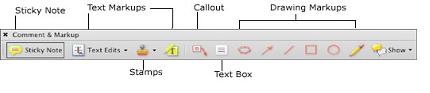
The commenting tools in Acrobat mimic real-life markup tools such as sticky notes, highlighters and markers. To display the comment and markup tools:

  • Using Acrobat 8.0, choose Comments > Show Comment and Markup Toolbar, or click on the Review & Comment button in the Acrobat toolbar. Figure 1 shows Acrobat 8.0’s layout.


Figure 1: Acrobat 8.0 commenting tools are very much like real-life drawing and markup tools. Except cleaner.

  • Using Acrobat 7.0, it’s the Comment & Markup button. See figure 2 for the layout of the toolbar in Acrobat 7.0, where the markup tools are divided between two toolbars and are accessed separately via Comments > Show Commenting Toolbar and Comments > Show Drawing Markups Toolbar.)

Figure 2 Acrobat 7.0 offers similar features.

The Sticky Note (called ‘Add a Note’ in earlier Acrobat versions) tool is fairly intuitive: Select the tool, click in the PDF and type in the digital note that appears at the edge of the PDF page. You can move notes around the page by clicking on the top outline bar of each individual note.

b. Mark-ups

Use Comments > Text Edits > Indicate Text Edits to mark desired changes in the text. When using the Text Edits tool (figure 3), just pretend that you’re typing corrections, because in reality nothing changes. You’re not actually changing text in the PDF-you’re only indicating where changes should be made. To indicate that you wish to delete text, highlight the text and hit Delete or Backspace. The text is marked with a strikethrough. To replace text, highlight text and type the new text. Acrobat strikes through the text and populates the accompanying note with your new text. To insert text, click the PDF to create an insertion point and type the new text. The added text is displayed in the associated note. The Highlight Text tool lets you call attention to selected text, and the associated note holds your comments. To delete any comment, select the comment’s icon on the PDF and hit the Delete key.

TIP: To see all of your changes, including comments and text edits, select Comments > Show Comments & Markups > Open All Pop-ups:


3. Save your file, then send it off to your editor.

More Help

Look to Acrobat’s Help Guide for more information on using the Comment and Review tools. Acrobat User Community (www.acrobatusers.com) is a good resource on wide range of Acrobat topics.

World Champions – Phinally!

Phinally!
Phinally!

What does it take to be a champion?  Here are excerpts from just a few everyday heroes who outta know:


Jim Loy: “Most great athletes will tell you that to get where they are took practice, practice, practice, work, work, work.” 

Zig Ziglar: “Learn the importance of:

  • Replacing bad habits with good habits.
  • Seeing the best in people.
  • Taking time to reflect.
  • Meeting challenges with assurance.
  • Greeting others with confidence and enthusiasm.
  • Balanced living.”

Stephen Downes: “Decide what’s worth doing. If you don’t decide what is worth doing, someone will decide for you, and at some point in your life you will realize that you haven’t done what is worth doing at all. So spend some time, today, thinking about what is worth doing. You can change your mind tomorrow. But begin, at least, to guide yourself somewhere.” 

The Philadelphia Phillies proved tonight that they can do all of the above. Congratulations, Phils!

2008 World Champions!

Augmented reality – tagging the world!

Augmented reality

Imagine this: You’re traveling on a desert highway out West, and you see a lone stone fort set back from the road.  The old stone structure looks interesting, and you wonder about its history.  You pull out your phone, aim it at the fort, and poof, a full description of the stone structure and its history pops up on your phone’s screen, telling you when it was built, what happened there, and who owns it today.

That’s augmented reality.

And it’s coming, soon. Check out these two glimpses into the future of storytelling, travel, and social networking:

An augmented reality application for Google Android-based phones: Wikitude AR Travel Guide

Futuristic 3D Storytelling – EyeMagicBooks
Fun, huh?