Reviewing Documents with Adobe Acrobat
Ever get one of those “please review attached document” emails? Then you open the attachment and it’s a “pdf” file. You scratch your head and wonder, “How do I mark up this document? It’s not easy like Word!” Well the pain is about to end, my friend. Read on to learn how to review documents using Adobe Acrobat’s commenting and mark-up features. Here’s how:
1. Save the file you want to review to your desktop
- Use the File > Save As command to save your file.
- Name your file by adding an underscore “_” and your initials to the given filename. Example, “filename_as_given_v1_hendrich.”
- Open the newly-renamed file to begin editing.
2. Make your comments and mark-ups
a. Comments
The commenting tools in Acrobat mimic real-life markup tools such as sticky notes, highlighters and markers. To display the comment and markup tools:
- Using Acrobat 8.0, choose Comments > Show Comment and Markup Toolbar, or click on the Review & Comment button in the Acrobat toolbar. Figure 1 shows Acrobat 8.0’s layout.

Figure 1: Acrobat 8.0 commenting tools are very much like real-life drawing and markup tools. Except cleaner.
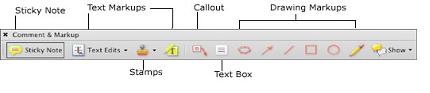
- Using Acrobat 7.0, it’s the Comment & Markup button. See figure 2 for the layout of the toolbar in Acrobat 7.0, where the markup tools are divided between two toolbars and are accessed separately via Comments > Show Commenting Toolbar and Comments > Show Drawing Markups Toolbar.)

Figure 2 Acrobat 7.0 offers similar features.
The Sticky Note (called ‘Add a Note’ in earlier Acrobat versions) tool is fairly intuitive: Select the tool, click in the PDF and type in the digital note that appears at the edge of the PDF page. You can move notes around the page by clicking on the top outline bar of each individual note.
b. Mark-ups
Use Comments > Text Edits > Indicate Text Edits to mark desired changes in the text. When using the Text Edits tool (figure 3), just pretend that you’re typing corrections, because in reality nothing changes. You’re not actually changing text in the PDF-you’re only indicating where changes should be made. To indicate that you wish to delete text, highlight the text and hit Delete or Backspace. The text is marked with a strikethrough. To replace text, highlight text and type the new text. Acrobat strikes through the text and populates the accompanying note with your new text. To insert text, click the PDF to create an insertion point and type the new text. The added text is displayed in the associated note. The Highlight Text tool lets you call attention to selected text, and the associated note holds your comments. To delete any comment, select the comment’s icon on the PDF and hit the Delete key.

TIP: To see all of your changes, including comments and text edits, select Comments > Show Comments & Markups > Open All Pop-ups:
3. Save your file, then send it off to your editor.
More Help
Look to Acrobat’s Help Guide for more information on using the Comment and Review tools. Acrobat User Community (www.acrobatusers.com) is a good resource on wide range of Acrobat topics.


 Susan E. Hendrich